
Technology
lastminute.com MCP
Overview
The lastminute.com MCP connects ChatGPT directly to lastminute.com’s travel infrastructure, enabling real-time flight search, comparison, and booking. Get instant access to global flight data with intelligent filtering and smart recommendations.
What users can do:
- Search flights with real-time results in ChatGPT.
- View results in an interactive widget embedded in the conversation.
- Compare one-way and round-trip itineraries.
- Open booking links directly on lastminute.com.
- Refine the search either from the widget itself or by writing a new request in the ChatGPT message box.
Where to find the app in ChatGPT
Recommended discovery path
- Open ChatGPT.
- Go to Settings → App.
- Open the app directory.
- Search for lastminute.com.
- Open the app page and click Connect.
- After connection, start a chat and ask for a flight search.
Notes
- Depending on plan, workspace settings, or availability, the Connect button may vary or be restricted. OpenAI notes that availability can depend on plan type, workspace controls, or geo restrictions.
- Once connected, the app can be used directly in ChatGPT conversations.
Quick Start
- Open ChatGPT.
- Find and connect the lastminute.com app from the app directory.
- Start a conversation such as:
Find flights from Milan to London from March 20 to March 23- ChatGPT will return a flight results widget in the conversation.
- From there, users can:
- inspect the proposed flights,
- click Book now to continue on lastminute.com,
- or adjust the main search parameters directly in the widget.
How the experience works
1. Search in natural language
Users can simply type a request in ChatGPT, for example:
Find flights from Milan to London from March 20 to March 23or:
Show me direct morning flights from Rome to Paris under 150 EUR2. Review the widget in chat
After the request, ChatGPT shows a flight results widget directly in the conversation.
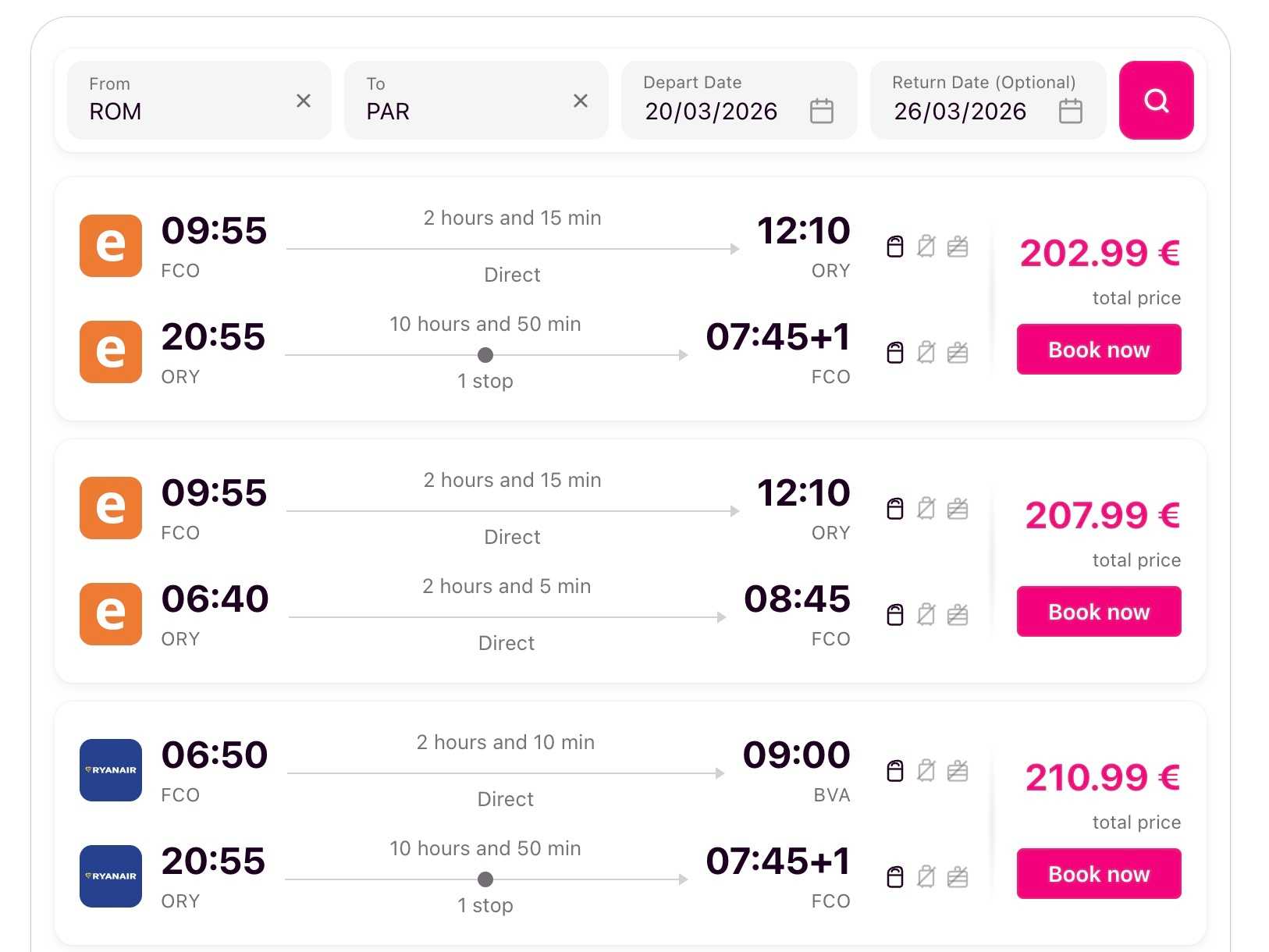
This section shows:
- the search bar at the top of the widget,
- the outbound/return dates,
- the flight cards,
- the Book now action.
3. Refine directly from the widget
For convenience, users can launch a new search from the widget itself by changing the main parameters:
- From
- To
- Depart date
- Return date
This is useful when the user wants to make a quick adjustment without rewriting the whole request.
4. Or start again from the ChatGPT text box
Using the widget does not replace the normal chat experience.
Users can always start a brand new search by typing directly in the ChatGPT message box again, for example:
Actually, search from Milan to Amsterdam insteadThis is important to keep explicit: the widget is a convenience layer for quick edits, but the standard ChatGPT text flow remains fully available.
Example user requests
Basic searches
Find flights from Milan to London on December 15th
Show me flights from New York to Paris next week
What flights are available from Barcelona to Rome?
With filters
Show me direct morning flights from Rome to Paris under 150 EUR
Find flights from Berlin to Madrid, departing after 2 PM
Search for business class flights from Dubai to Singapore with max 1 stop
Round trips
Find round-trip flights from Berlin to Tokyo, departing January 10th and returning January 20th
Show me weekend flights from London to Amsterdam, leaving Friday returning Sunday
Smart recommendations
What are the best flights from Barcelona to New York next week?
Recommend flights from Paris to San Francisco in February
Advanced filtering
Find flights from Milan Malpensa to London Heathrow, direct only, under 100 EUR
Show me flights from Rome excluding Ryanair, max 3 hours duration
Search for morning flights from Paris to Berlin
Widget behavior
The widget is the main visual surface for the app in ChatGPT.
What the widget shows
- departure and arrival route,
- travel dates,
- airline logo and itinerary summary,
- duration and stops,
- baggage indicators,
- total price,
- a Book now button.
What users can do from the widget
- inspect results quickly,
- trigger a new search with updated route or dates,
- open the booking flow on lastminute.com.
Important UX note
If a user wants a completely different search, they can either:
- edit the main route/date fields in the widget,
- or simply type a new request in the ChatGPT message box.
Both entry points are supported.
Search modes
The app supports three main search modes:
1. Default mode
Returns flights sorted by price, with no additional filtering.
Use for: general searches, cheapest options.
2. Filter mode
Applies specific constraints such as stops, times, airports, airlines, or price.
Use for: direct-only, max budget, specific airport, morning/evening departures.
3. Ranking mode
Uses a smart ranking algorithm balancing price, duration, and convenience.
Use for: best flights, recommended flights.
Supported languages and currencies
Languages: English, Italian, Spanish, French, German, Dutch, Polish, Swedish, Danish, Norwegian, Finnish.
Currencies: EUR and other ISO 4217 currency codes supported by the flight search flow.
Booking and privacy
- The widget includes booking links that open the final booking flow on lastminute.com.
- The booking itself happens outside ChatGPT, on lastminute.com.
- The app is intended for flight discovery, comparison, and booking handoff.
Need help?
- For technical issues with the app, contact mcp@lastminute.com.
- For booking issues or reservation support, refer users to lastminute.com support.
Version: 1.0
Platform: ChatGPT Apps
Last updated: March 2026
Written by lastminute.com folks, who live for the holidays. You should follow us on Twitter.


Want to express your love for travel and tech? Well, you could read another article, or you could just come and join us. We’re always looking for talent to help us enrich the lives of travellers - find your role here.
The postings on this site are authors' opinions and experiences and do not necessarily represent the postings, strategies or opinions of lastminute.com group.